
Best Alternatives to Claude Design in 2026
Claude Design is a strong option for design work. But what you need from an AI design tool depends on what you're currently building and what your design workflow is like. So, it's worth exploring your options based on your unique needs.
In this guide, we’ve compared seven alternatives to help you choose. We look at their design decisions, the references you can start from, your choice of models and agents, how you can explore and edit on a canvas, and how the result gets into your codebase.
What Claude Design does
Claude Design generates designs, prototypes, slides and one-pagers from your prompt. It can use your imported design system, check the output against it, and make corrections.
You can start from a description, images, documents, your codebase or elements captured from your website. To refine a design, comment on any element, edit text, drag and resize elements, or use the sliders Claude creates to tune spacing and color.
When a design is ready, you can share it with your teammates or use Claude Code to generate code for it. You can also export it as HTML, PPTX or PDF, or send it to tools like Canva, Lovable and Vercel.
How we compared the tools
- Design: Does the tool work out what your page needs to stand out, or does it fall back on the same familiar choices?
- Reference: If you don't want to start from scratch, where can you start from: a library of examples, a live website, a screenshot or a Figma file?
- Freedom & flexibility: Can you pick your models, keep using the coding agents you already have and work in the app or editor you like?
- Exploration & canvas: Can you compare several directions side by side and make exact changes without breaking your colors, fonts and components?
- Code & repo: Once you're happy with a design, how does it generate code for it?
7 alternatives to Claude Design
1. Kombai
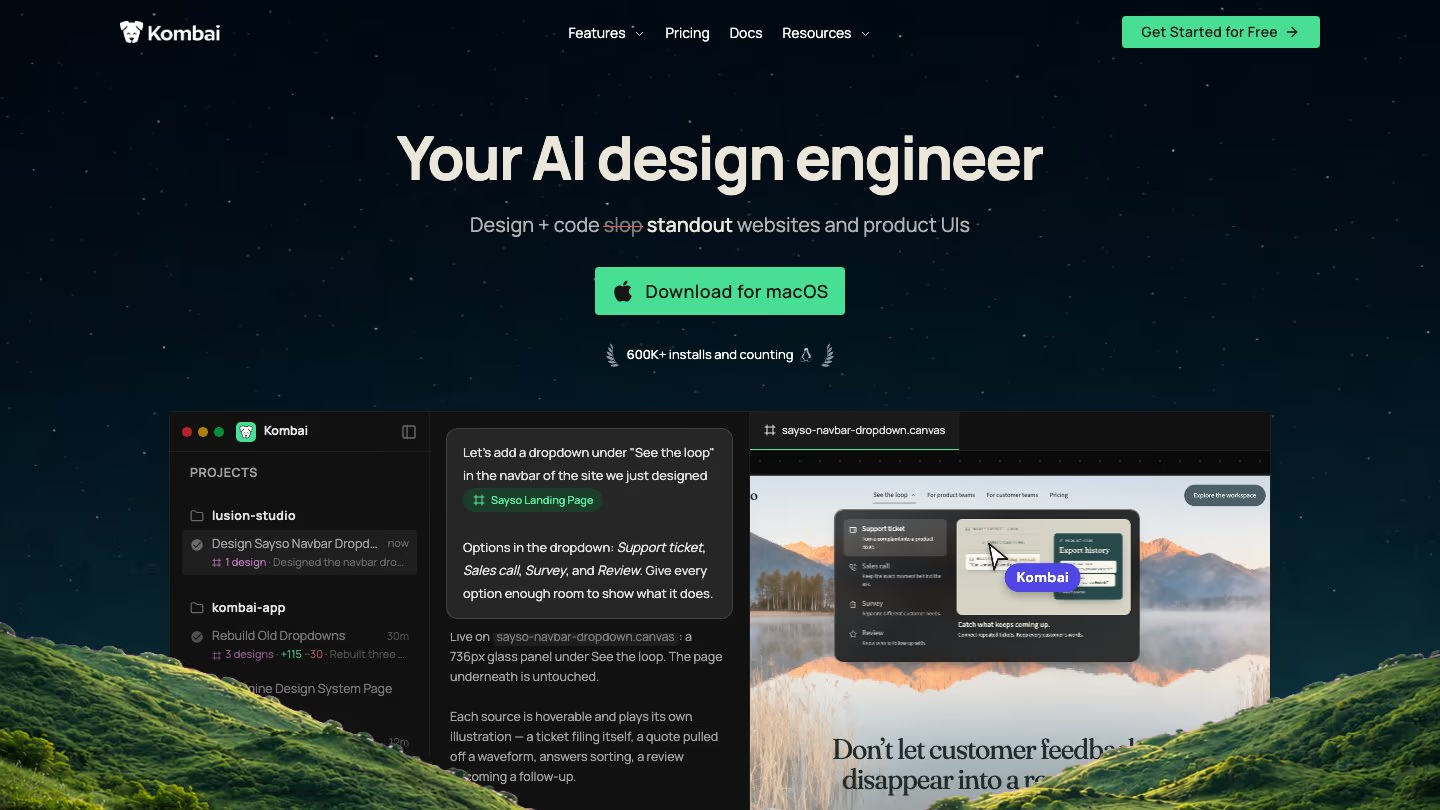
Kombai's dedicated taste agent considers what your design needs when it chooses the structure, hierarchy, visual style and motion. It respects the design choices mentioned in your prompt and already decided in your product. Then it works out the remaining choices for your task to generate designs that stand out from the familiar AI defaults.
If you'd rather not start from a blank canvas, open Inspirations, Kombai's curated library of 20K+ app pages, sections, landing pages and animations. Pick a landing page you like, and ask Kombai to use the inspiration for your product while keeping its original structure and visual direction. You can also ask Kombai to find relevant inspirations for you, or recreate any live webpage as a design on the canvas.
Kombai doesn't lock you into a particular platform or a set of models. You can use Kombai in its desktop app, IDE extension, or with your favorite coding agents via Kombai MCP Server. You can use latest models from OpenAI, Anthropic, Google and other providers, or let Kombai's Auto router choose one for each task. If the task requires it, you can also switch models and agents in the middle of a chat.
Kombai can follow your product's design system and generate multiple design variants for your task, side by side on an infinite canvas. Ask it to generate new variations of your design with a different style, structure, interaction or screen size. You can also make granular edits in text and styles yourself.
Once you're happy with a design, share it with a teammate for feedback or ask Kombai to build the UI in your project. Kombai understands your stack and uses Context Graphs to reuse the components, tokens and hooks you already have. You can also refine the running page visually in Kombai Browser and send your changes to the agent.
2. Figma
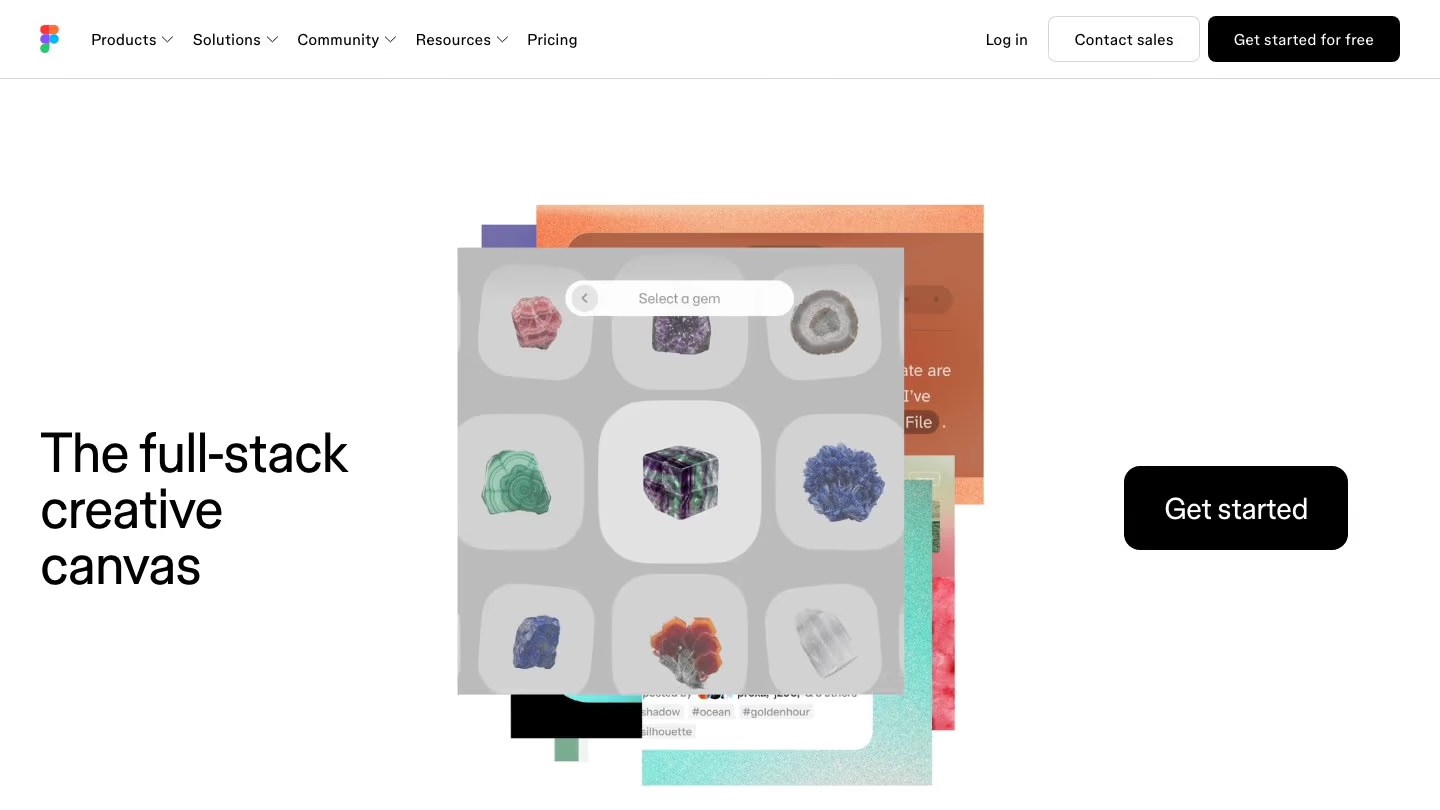
Figma's agent works inside your Figma Design files and in Figma Make. It generates new screens and layouts from a prompt using your team's libraries. You can @-mention the exact components, variables and styles you want it to use.
You can start from a prompt, an image, a file or a design link, or attach existing Figma designs, components and Community files.
Figma's agent can connect to external tools through MCP to pull in context, and your team can turn its workflows and conventions into shareable skills. In Figma Design, it can adjust spacing and alignment, convert a layout to other screen sizes, switch component variants or apply your variables. In Figma Make, you can point at a part of the preview and adjust it in the properties panel, or edit the code directly.
When you're ready to build, the Figma MCP server gives Claude Code, Codex, Cursor and other coding agents the design context from your file. If available on your plan, you can also use Code Connect to give agents references to your real components, helping them reuse items from your codebase.
Read more: 7 popular AI design tools in 2026, compared
3. pen.dev
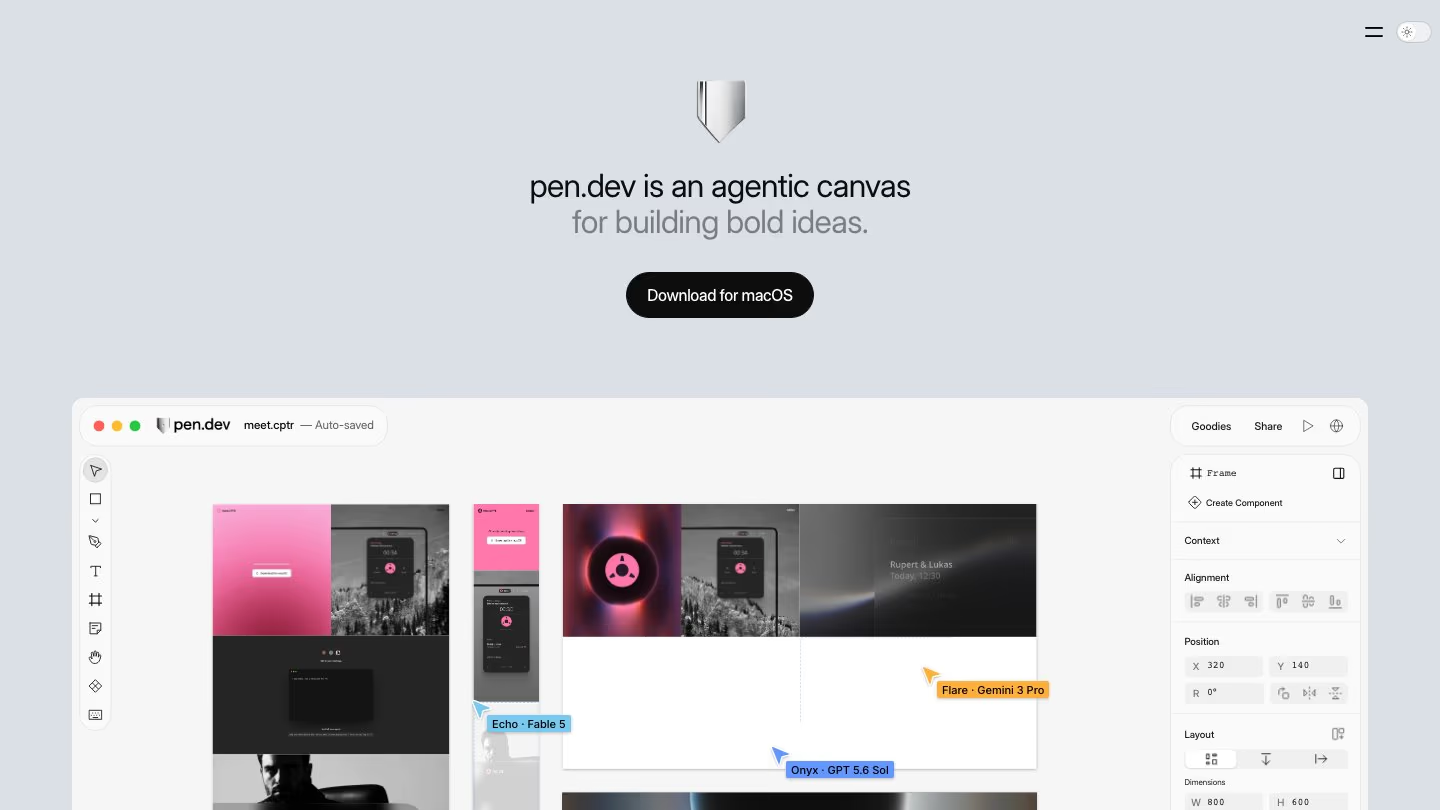
In pen.dev, AI agents create new designs or change the one you're working on, right on the canvas. You can run up to six agents at once, either splitting the task so each works on a different part, or giving them all the same task to get alternatives.
You can start from a prompt, import a webpage as editable layers, or bring in a Figma file. Anything you select on the canvas goes to the agent as context, so you can point it at exactly what to change.
The agents run on whichever model provider you connect, including your Claude Code or Codex subscription. You can use pen.dev as a desktop app, from VS Code or Cursor through its MCP integration, or in the terminal.
After the first design, pen.dev can keep generating two to six variants, exploring either new layouts with the same visual style or new visual styles. Vector tools handle the fine detail, and shared variables, components and libraries keep repeated elements consistent.
You can save designs as .pen files in your repo, so the agent can see your design and code together, and version control tracks both. The agent turns a design into code for your stack and can copy design tokens between your CSS and pen.dev's variables.
4. Paper
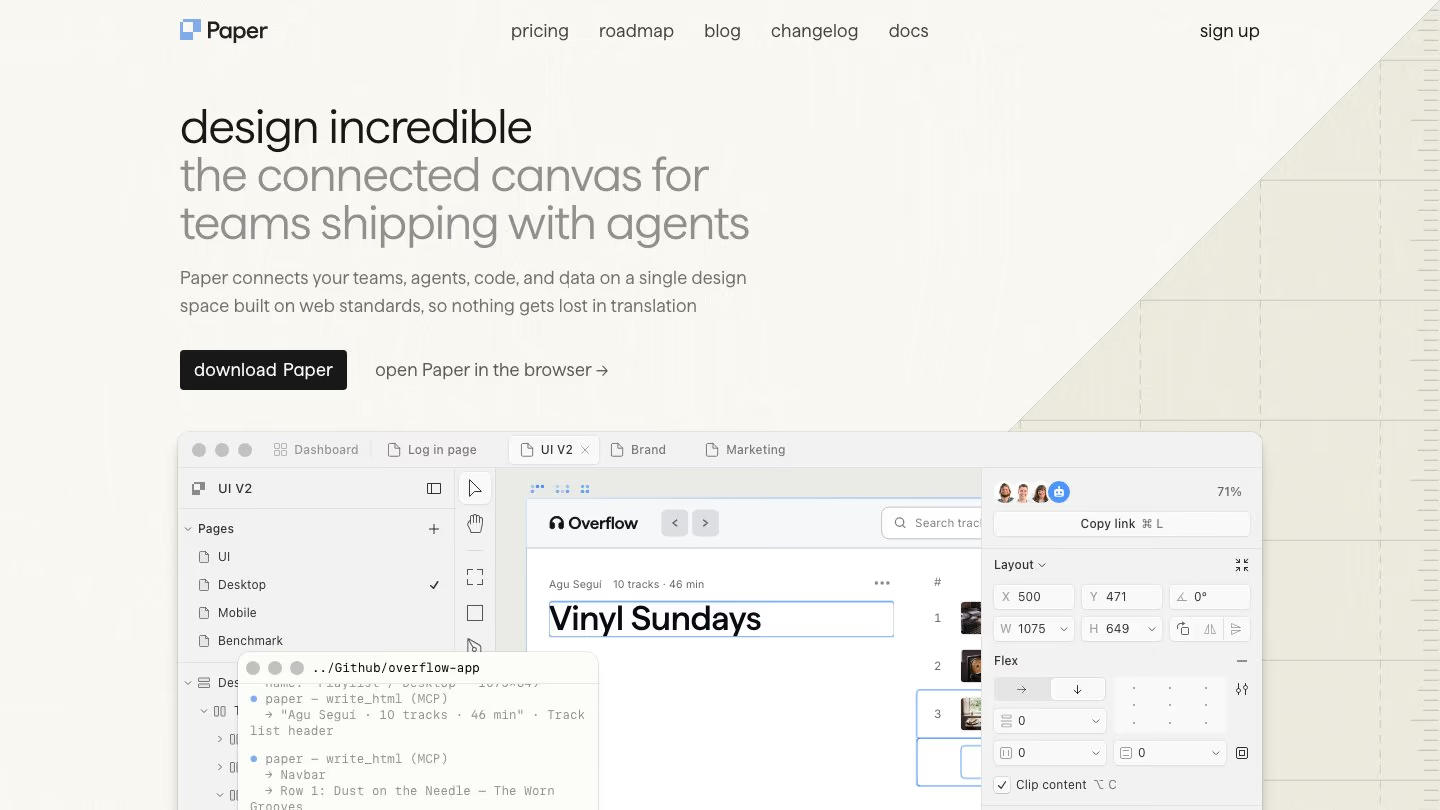
In Paper, your coding agent does the designing. It builds screens right in your Paper file and handles responsive layouts, style variations and other repetitive work, while you make the creative decisions.
To give your agent a starting point, paste in content from Figma or HTML, or capture any element from a live webpage with the Snapshot browser extension. You can also bring in real content and data from apps on your computer or in the cloud, so you design with the real thing instead of placeholders.
Paper works with any IDE or command-line agent you connect through the Paper MCP server, including Claude Code, Codex and Cursor. Once connected, the agent works in a shared layer that goes from code to design and back.
You can fine-tune designs by hand with vector tools on the canvas, while your teammates work alongside you with multiplayer cursors and comments. Paper uses tokens for color, spacing, corner radius and typography, created from your CSS variables to keep each design consistent with your product.
Designs in Paper export as code, and your agent can turn a selected frame into code for your project. Paper can also sync design tokens, styles and components between your codebase and the canvas.
Read more: Best Paper.design alternatives in 2026
5. Google Stitch
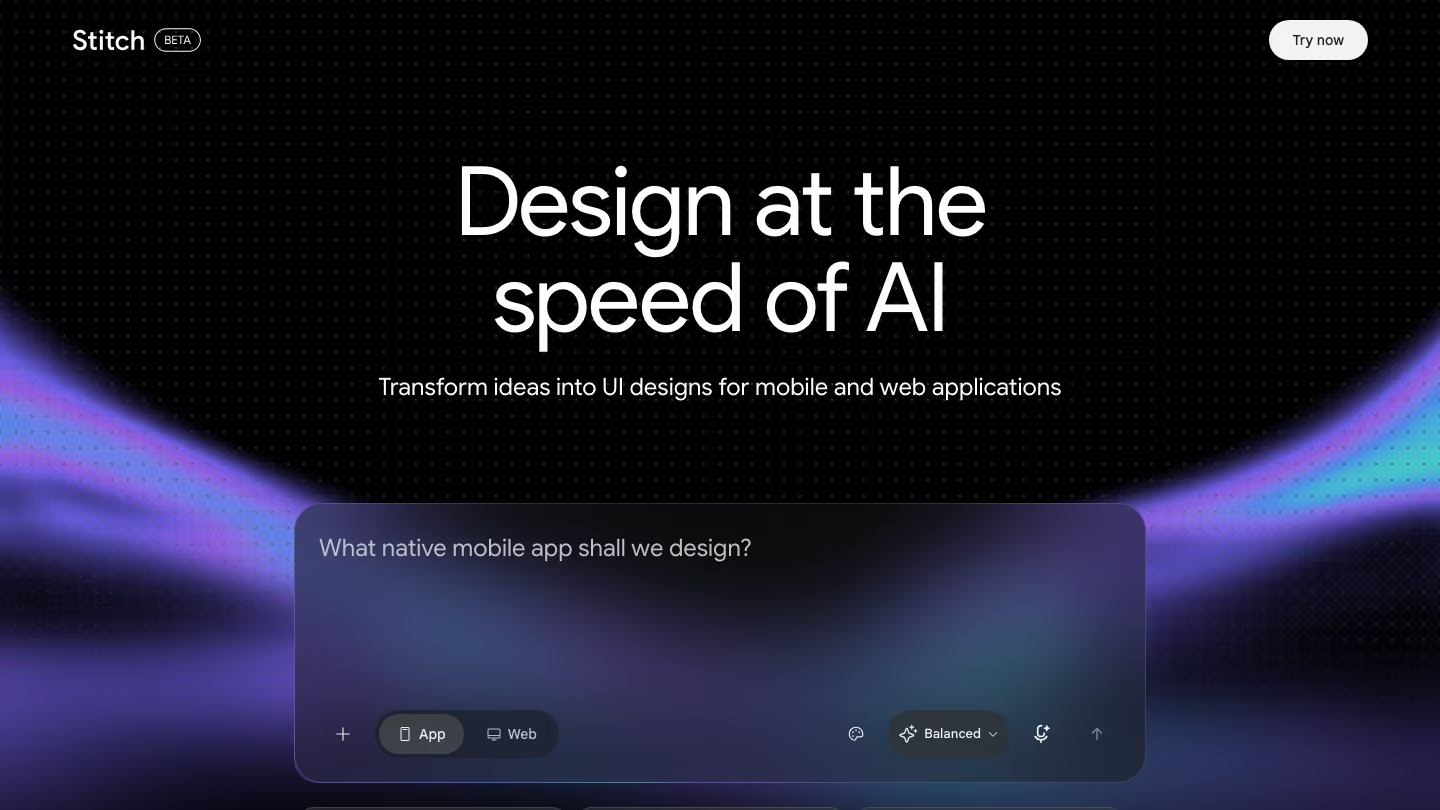
Google Stitch designs mobile and web interfaces with the Stitch Agent, which works across your whole project. It streams its work to the canvas as it goes, so you can watch it design and steer it before it finishes.
You can start from whatever you have: a text prompt, your voice, an image, a whiteboard sketch, a screenshot, a wireframe, or existing code and design files. Stitch can also pull a design system from a website's URL and keep your design rules in a DESIGN.md file you can import or export.
It runs on Google's own agent in the Stitch web app. You can also use Stitch's MCP server and SDK to connect it with your own tools.
On its infinite canvas, the Agent manager runs several ideas in parallel so you can compare options like different menus or color palettes side by side. When you've picked a direction, connect the screens into a clickable prototype and play through the flow.
When a design is ready, export it as frontend code or send your screens to Google Antigravity to add backend logic. You can also share it through a Google AI Studio link or publish it straight to the web with Netlify.
Read more: Best Google Stitch alternatives in 2026
6. OpenDesign
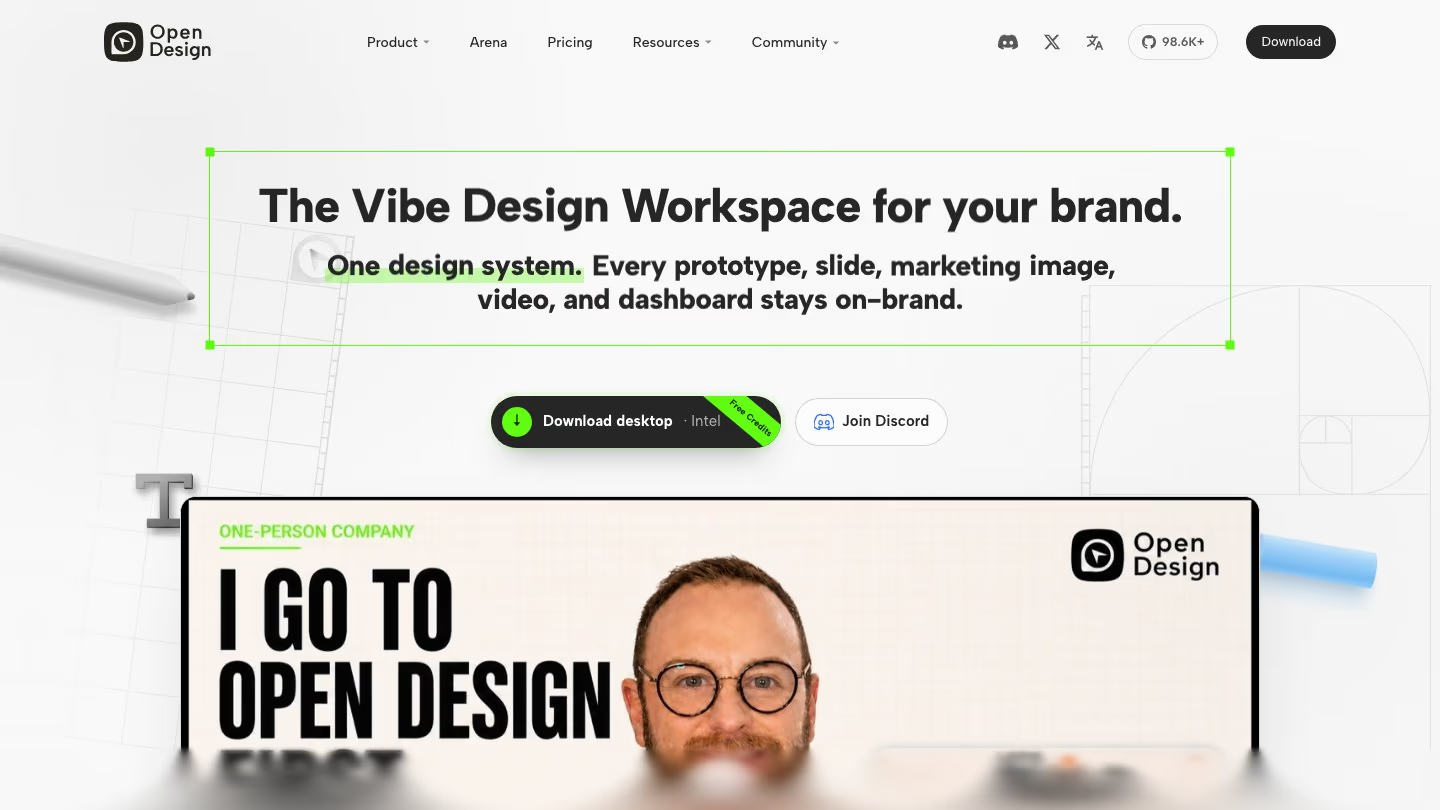
OpenDesign builds each design around a DESIGN.md design system. It comes with 152+ ready-made design systems, plus reusable skills that keep designs consistent across brands.
You can start from a brief, one of its templates, a screenshot, a Figma export or a local repo. If you already have a brand, OpenDesign can extract it from your screenshots or Figma exports and reuse it across everything you make.
OpenDesign is open source and runs on the coding agent you already have, with support for 21+ agents like Claude Code, Codex, Cursor and Gemini CLI. You can also bring your own API keys for providers like Anthropic, OpenAI or Google.
The agent previews and edits designs live, and you can select, resize, retype and recolor elements yourself.
Everything OpenDesign creates, from prototypes and landing pages to slide decks and HTML video, is saved as runnable files in your project folder rather than a vendor's cloud. You can export slides as PPT and hand off code-ready prototypes to your engineers.
7. v0
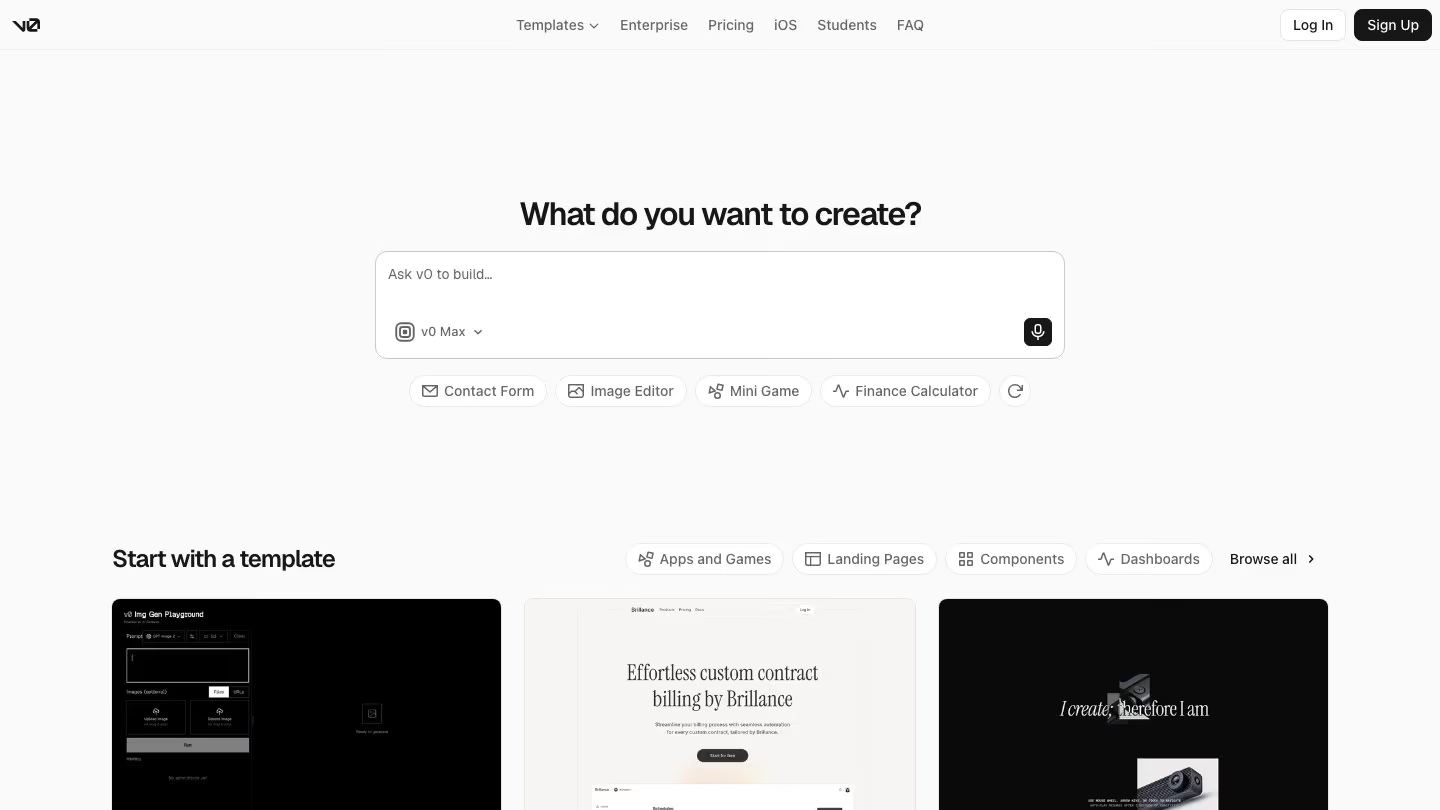
v0 designs UI and turns it into a working app. With Design Systems 2.0, it can learn your components, tokens and conventions from your repo, Figma, Storybook or a package and save them as a skill.
You can start from a prompt, a screenshot, a wireframe or a Figma link. If your project already exists, you can import it from GitHub and start a chat on the branch you choose.
v0 runs in the browser and offers four model tiers: Mini, Pro, Max and Max Fast. Eligible Enterprise workspaces can also add custom models from AI Gateway. You can also connect your own MCP servers, such as Linear, Notion or Sentry, so v0 can use their tools while it builds.
v0 shows your design in a live preview as it builds. With Design Mode, you click an element and adjust its fonts, colors, spacing, borders, shadows or text, or describe the change, and v0 updates your source code when you apply the edits.
What you build in v0 is working app code. v0 commits changes to a working branch in your GitHub repo and gives each branch its own preview deployment.
Frequently asked questions
Can I keep using Claude Code or Codex with Kombai?
Yes. With Local Agents, Kombai runs tasks on your existing Claude Code or Codex subscription. It also works the other way around: through the Kombai MCP Server, Claude Code, Cursor or Codex can start a Kombai chat and read your canvases.
Is a Kombai design the same as production code?
No. Designs on the canvas are HTML, so you can explore and compare ideas without setting up your app, and you can export any design as PNG or HTML. When you're ready, Kombai builds the design you picked into your app, using your app's framework and your existing components.
How does a team review Kombai designs?
Canvases are saved as files in your project, so designs can go through the same branches, commits and pull requests as your code. Teammates can leave comments on a design, and you can share a canvas with them from the app.