
7 popular AI design tools in 2026
The AI design tool market is crowded, and it's getting harder to decide which tool fits your use case. Several of them can run on the same frontier models, and newer, more capable models are coming out every few weeks. So the bigger difference is in what each tool builds around the model: how it approaches a design, what context and references it works from, and how much control it gives you.
We looked at 7 popular AI design tools through this lens. For each one, you'll find its key features, pricing, who it's best for and where it falls short.
1. Kombai
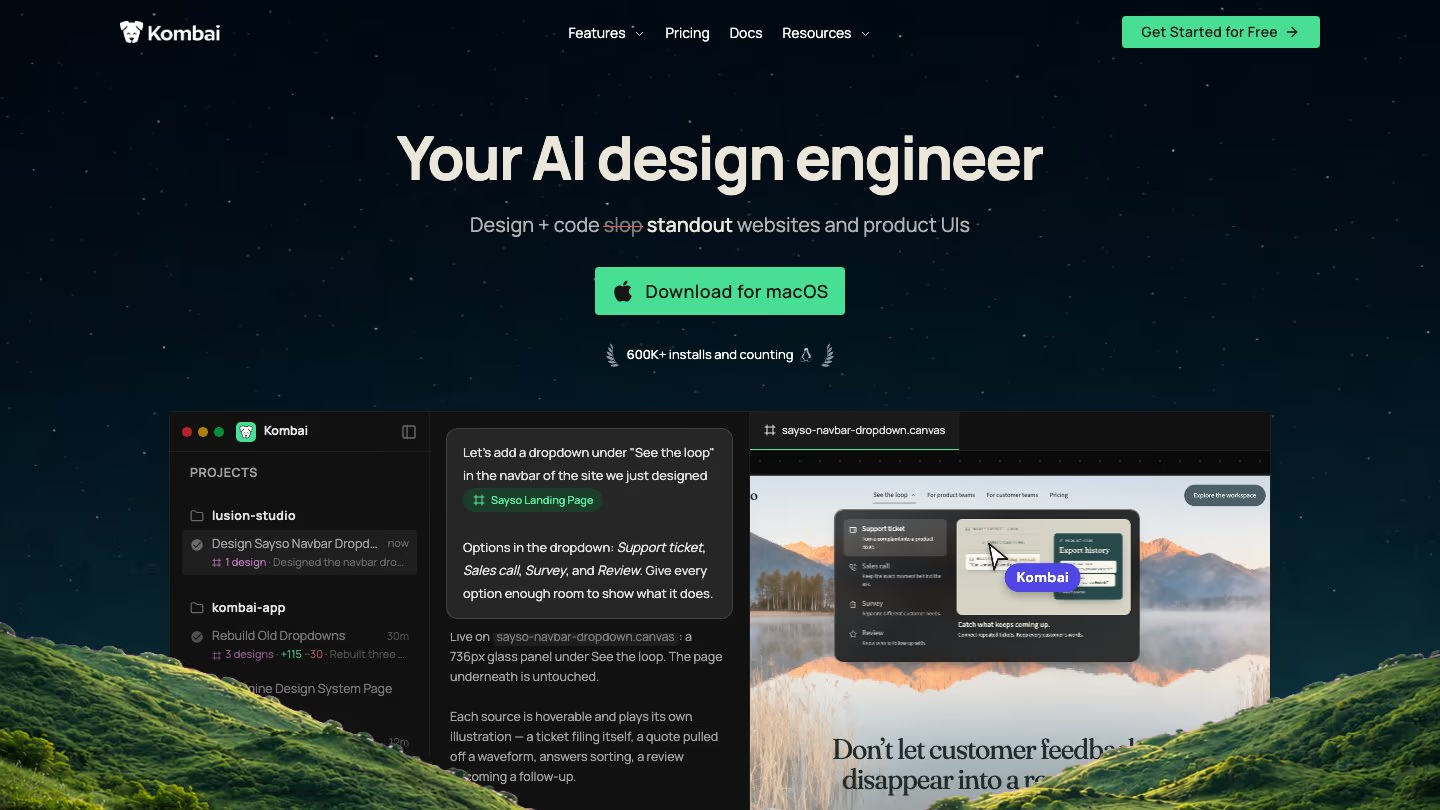
Kombai is an AI design engineer that generates standout websites and product UIs. Instead of falling back on familiar AI defaults, Kombai's taste agent builds a creative strategy for each design task, based on what the task needs and what your product has already decided.
You can use Kombai in its desktop app or IDE extension, or inside your favorite coding agents through the Kombai MCP Server. With Kombai, you can:
- Get a standout design for your task, with a structure, hierarchy, visual style and motion chosen to fit its purpose.
- Explore several design directions side by side on an infinite canvas, with different layouts, visual styles and interactions. Designs are live HTML and CSS, so states and animations work as they would on the page.
- Capture your product's colors, typography and spacing in a reusable design system, so new designs look and feel like part of your product.
- Start from Kombai's library of 20K+ curated UI inspirations, or bring your own, like a website, an image, a DESIGN.md or a Figma design.
- Choose from 50+ models for design, code, images and video, including Claude, GPT, Grok, Kimi, Veo, Seedance, GPT Images and more.
Pricing
Kombai has a free plan with 300 credits a month. Pro starts at $20 a month for 2,000 credits, and there are Team and Enterprise plans as well. See Kombai pricing.
Who it's for
Kombai is best for builders and engineers who want standout websites and product UIs that still feel right for their product. It has no vector canvas, though, so if most of your design work happens in a vector editor, Kombai won't replace it.
2. Figma
Figma Design has a built-in agent that runs multi-step design tasks on your canvas, using your real components, tokens and variables.
Figma also has a separate prompt-to-app tool called Figma Make that turns ideas and existing Figma designs into functional prototypes, web apps and interactive UI. With both, you can:
- Connect your team's libraries and tell the agent which components, variables and styles to use, so results match your design system.
- Generate new screens and layouts from a prompt. The agent can also adjust spacing and alignment, convert layouts to other screen sizes, switch component variants and apply variables.
- Run several prompts at once to compare directions.
- Paste a design link, add images and files, or connect external tools through MCP. You can also turn your team's workflows and conventions into shareable skills that work in both the agent and Figma Make.
- Select part of a Figma Make preview and adjust it in a properties panel, or edit the code directly. Plan mode builds an editable plan before generation starts.
- Prompt your own reusable plugins and custom shader effects right on the canvas.
The Figma MCP server gives coding agents like Claude Code, Codex and Cursor design context from your file.
Pricing
Figma's Starter plan is free, with up to 500 AI credits a month. A Professional Full seat costs $16 a month on annual billing and includes 3,000 AI credits a month.
Who it's for
Figma is best for teams that already design in Figma and want an agent that works with their libraries, inside the files they share. The agent has monthly usage limits, and vector editing, drawing tools and prototyping are still listed as coming soon. To edit with it in any file, you need a Full seat. View, Dev and Collab seats can chat with it and try it in drafts.
3. Claude Design
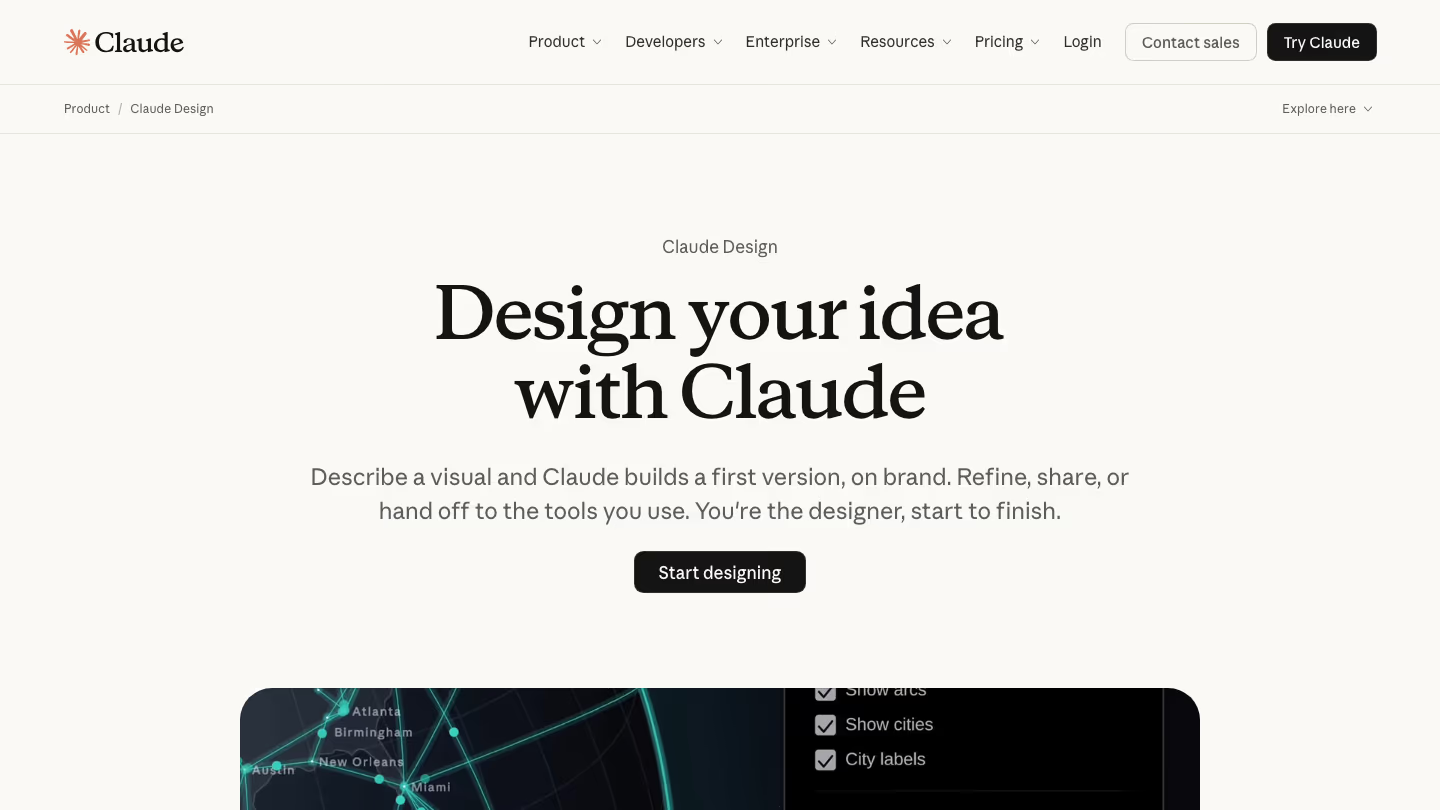
Claude Design lets you create designs, interactive prototypes, one-pagers and other visual work by chatting with Claude. Describe the design you want, and Claude will build a version for you to review and refine.
You can also use Claude Design inside the Chat, Cowork and Code modes of Claude's desktop app. With Claude Design, you can:
- Import your design system from GitHub, design files or your local codebase so Claude builds with your real components. Claude checks its output against your design system and makes corrections before you see it.
- Start from a text prompt, images, screenshots, DOCX, PPTX or XLSX files, or a codebase.
- Comment on any element, edit text, or use the sliders Claude creates to tune spacing and color. You can also drag, resize and align elements.
- Export to PDF, PPTX or standalone HTML, or send your work to tools like Canva, Lovable, Miro and Vercel.
When a design is ready to build, you can hand it off to Claude Code, which continues from your existing work.
Pricing
Claude Design is included in every paid Claude plan, starting with Pro at $17 a month on annual billing or $20 billed monthly. It shares your plan's usage limits with the rest of Claude.
Who it's for
Claude Design is best for teams already on a paid Claude plan who want on-brand visuals, prototypes and one-pagers, including people without a design background. It's in beta and doesn't have version history yet. Anthropic also says 2 or more people editing the same design at once is still basic and may not work reliably.
Read more: Best Alternatives to Claude Design in 2026
4. pen.dev
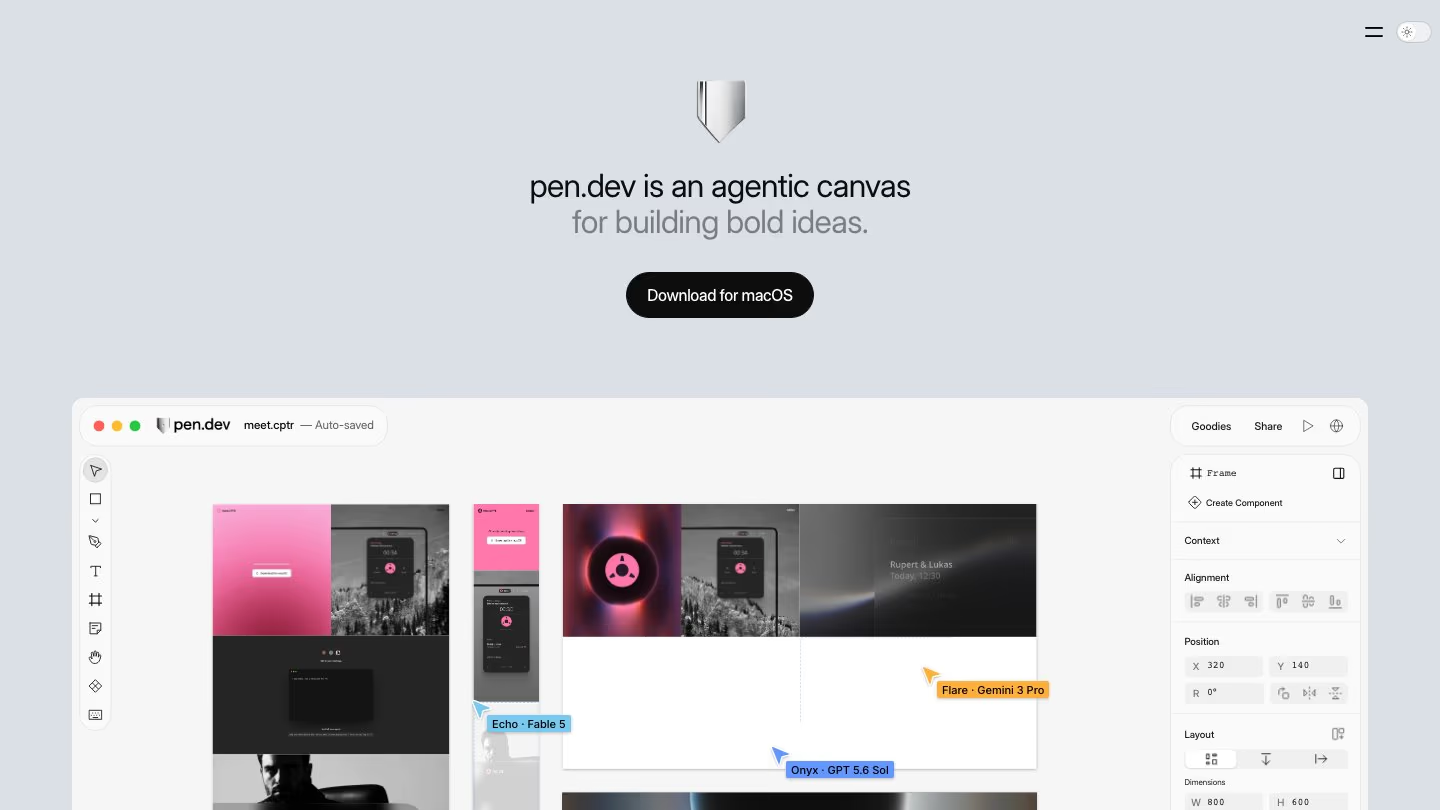
pen.dev, formerly pencil.dev, is an agentic canvas for building software. You design with agents right on the canvas, refine every detail by hand, and ship the result back to code.
It runs as a desktop app, an IDE extension and a command-line tool, and lets you:
- Run up to 6 agents at once, either splitting a task between them or giving them all the same task to get alternatives.
- Keep generating 2 to 6 variants after the first design, exploring either new layouts in the same visual style or new visual styles.
- Bring in a web page or a single element as editable layers through the built-in browser, import .fig files, or paste from Figma. The layers you select go to the agent as context.
- Use your ChatGPT or Claude subscription, or add API keys. You can also connect Claude Code, Codex, Cursor and other agents to pen.dev through MCP.
- Draw with vector tools by hand, or draw icons and illustrations with agents using AI Pen. Shaders add visual effects, and design libraries share components and variables across files.
You can keep .pen files in your repo, so Git tracks design and code together. The agent can generate code for any stack.
Pricing
pen.dev is currently free, and its agents run on the model provider you connect. It says it may add paid plans later.
Who it's for
pen.dev is best for builders who want a vector design canvas that sits next to their code, in their IDE and their repo. To run agents, you need to connect a model provider, like a ChatGPT or Claude subscription or an API key. Importing a web page works only in the desktop app, and imported layers don't keep the page's JavaScript interactions.
5. Paper
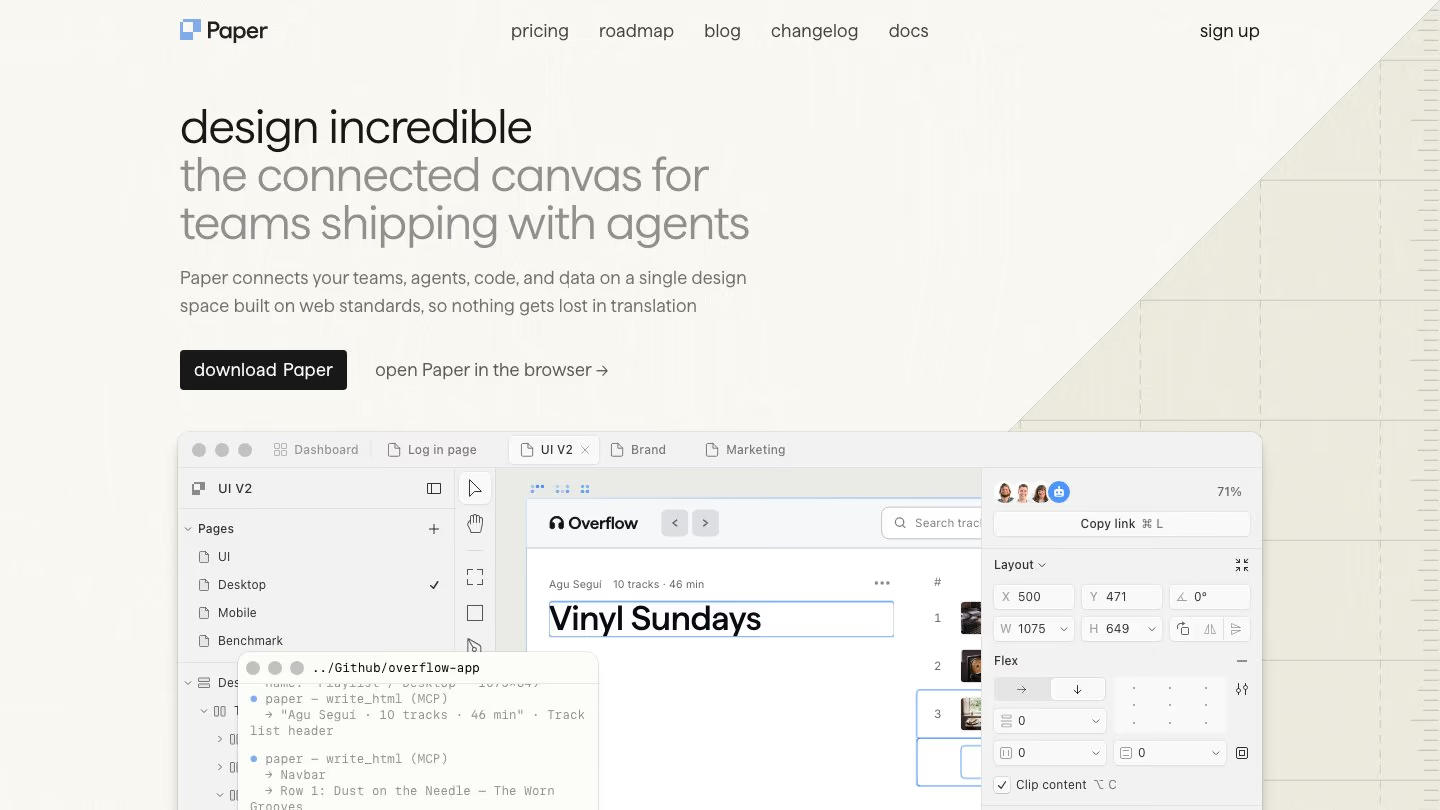
Paper is a connected canvas for teams shipping with agents. Its canvas is built on real HTML and CSS, which makes your designs easy for AI agents to read and write.
Agents take on responsive layouts, style variations and other repetitive tasks, so you can focus on the design decisions only you can make.
In Paper, you can:
- Connect Claude Code, Codex, Cursor, GitHub Copilot and other agents through the Paper MCP server. They can generate a layout, pull in real content or turn a selected frame into code.
- Bring content, databases and context from apps on your computer or in the cloud, so you design with real data instead of placeholder text.
- Paste from Figma or HTML, or use the Snapshot browser extension to copy any webpage into Paper as editable layers.
- Create tokens for color, spacing, radius, fonts, breakpoints and more from your CSS variables or from an existing design.
- Add shaders, image filters and P3 wide-gamut color, and generate images and SVGs with built-in AI.
- Work with your team in real time, and leave comments for your teammates and your agents.
Pricing
Paper's free plan includes unlimited editors and 100 MCP tool calls a week. Pro costs $16 per editor a month on yearly billing, with 1M MCP tool calls a week and video export.
Who it's for
Paper is best for design teams who want to work alongside their agents in one shared file, with real content instead of placeholders. Agents work through MCP, which needs the Paper Desktop app open with a file loaded. Components and libraries are still coming soon, and vector editing is in progress.
Read more: Best Paper.design alternatives in 2026
6. Google Stitch
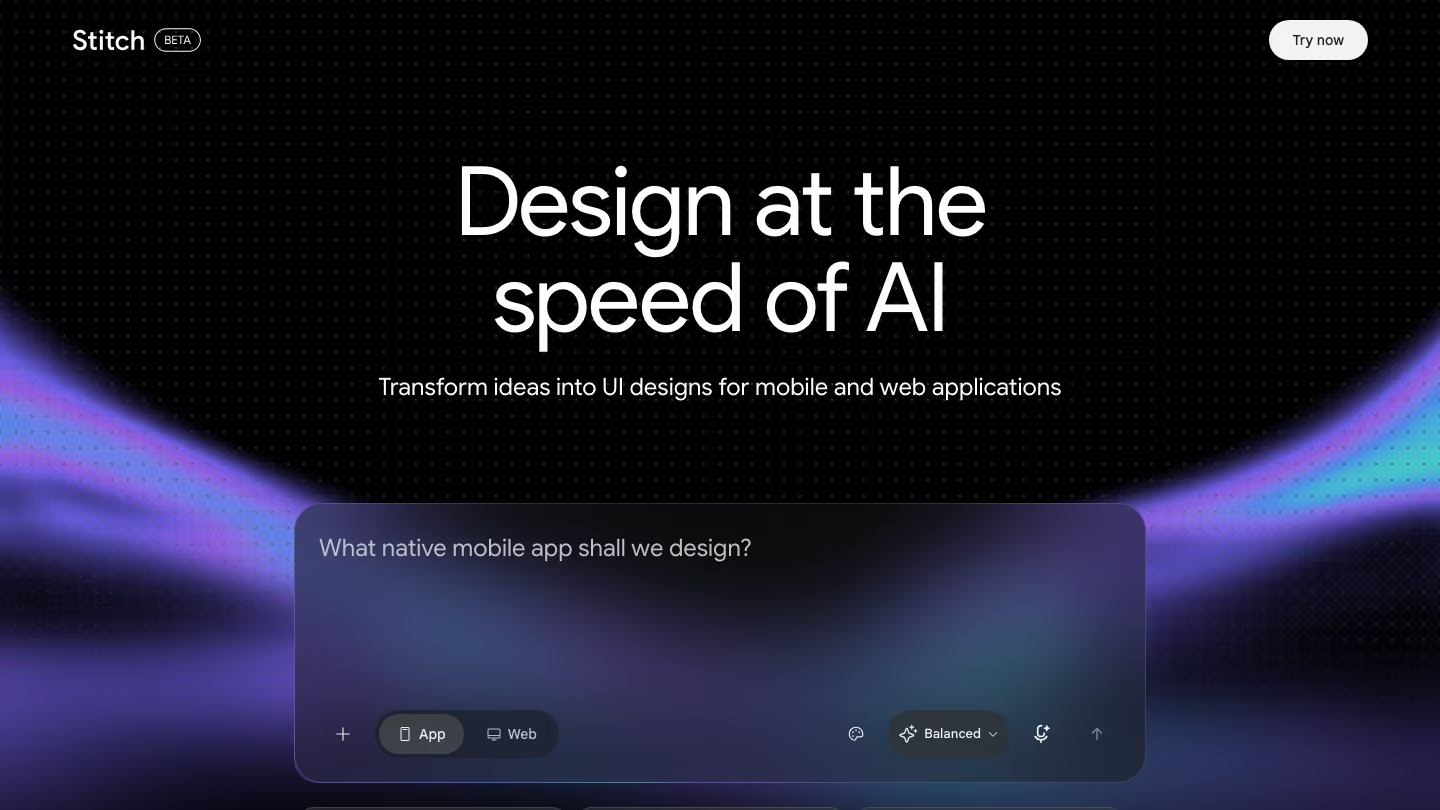
Google Stitch is an AI-native design canvas that turns prompts, sketches and screenshots into UI designs for mobile and web apps.
The Stitch Agent streams its work to the canvas as it goes, so you can watch it and steer iterations before it's done.
With Stitch, you can:
- Start from a text prompt, your voice, images, a whiteboard sketch, a screenshot, a wireframe, or existing code and design files.
- Speak to your canvas. The agent can give you design critiques, update the design as you talk, or design a new landing page by interviewing you.
- Extract a design system from any URL, or import and export your design rules as a DESIGN.md file.
- Generate 1 to 5 options at a time, from refined to more creative. The Agent manager helps you work on several ideas in parallel on an infinite canvas.
- Connect screens and click Play to preview the flow. Stitch can also generate the next screens based on where you click.
- Let Cursor, Antigravity, Gemini CLI and other tools work with your Stitch projects through its MCP server, SDK and skills.
Pricing
Stitch is currently free, with a daily credit limit that resets at midnight UTC.
Who it's for
Stitch is best for founders and designers who want to go from an idea to a clickable prototype quickly, for free. It's an experimental Google Labs tool, available in English to users 18+ in countries where Gemini is available. Code export is HTML, and for React, Angular or Vue, Google suggests converting it with an LLM.
Read more: Best Google Stitch alternatives in 2026
7. OpenDesign
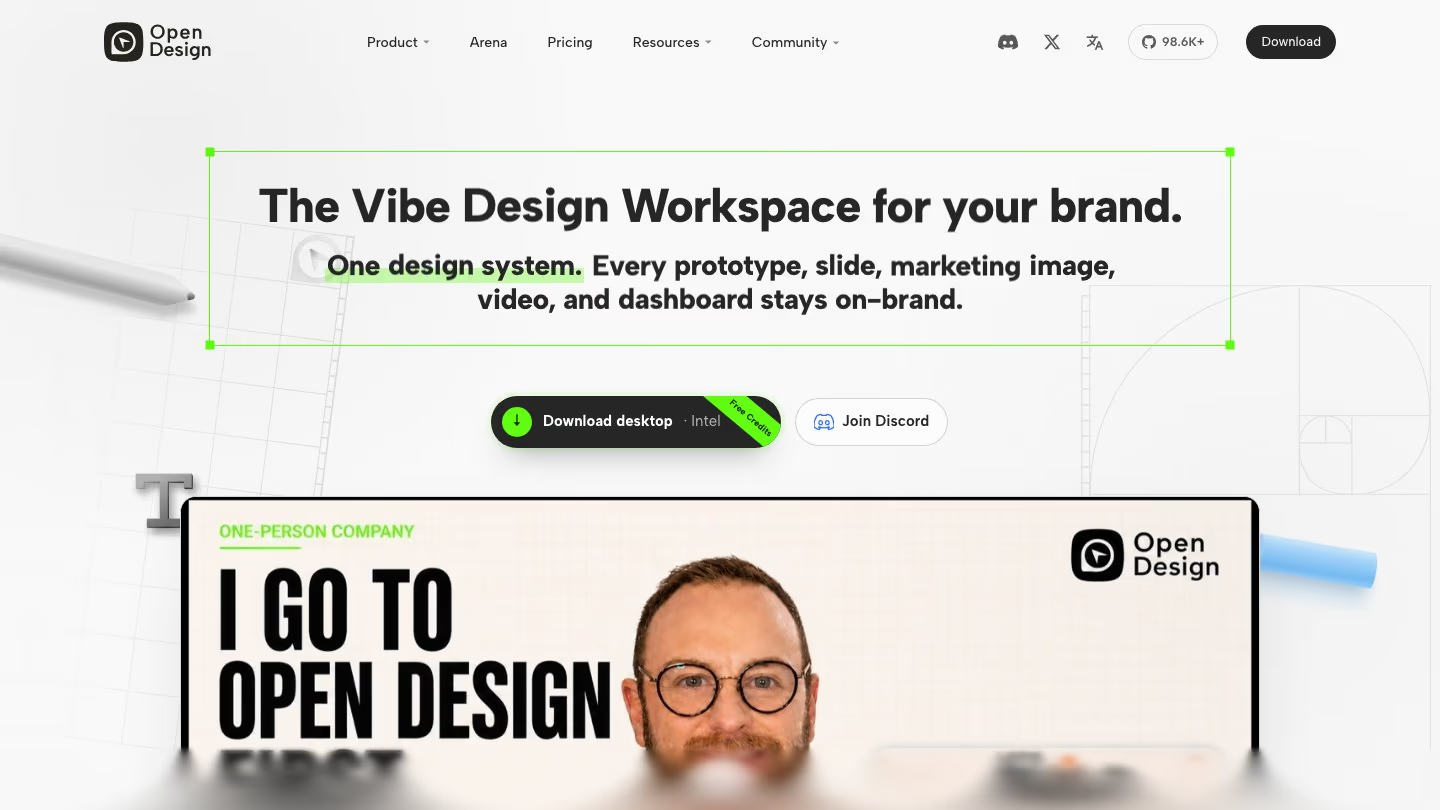
OpenDesign is an open-source, local-first design workspace. It turns the coding agents you already run into a design engine for prototypes, landing pages, slides, dashboards and HTML video, all on your own machine.
Every design reads a DESIGN.md file as its brand guide. With OpenDesign, you can:
- Start from one of 150+ ready-made DESIGN.md design systems. Or drop in a screenshot or Figma export and ask the agent to extract your brand into a DESIGN.md.
- Plug in 21+ coding agents like Claude Code, Codex, Cursor and Gemini CLI, or bring your own API key.
- Let your choices settle into your design system, preferences and memory, so later designs land closer to what you want.
- Select an element to move or resize it, edit its text, or change its color and alignment. You can also replace, crop and drop in images.
- Create prototypes, decks, mobile app screens, images, documents and HyperFrames videos. Decks export to HTML, PDF and PPTX.
- Use OpenDesign as a skill, plugin or MCP server inside Claude Code, Codex or Cursor, without opening the app.
Pricing
OpenDesign is free and open source, and you pay your model provider directly. OpenDesign Cloud plans for hosted models start at $10 a month.
Who it's for
OpenDesign is best for builders who want an open-source design tool that runs locally on the agents or API keys they already have. It isn't a hosted product, so you need a local setup with an agent, and there's no hosted editor. The desktop app is for macOS and Windows. On Linux, you run it from source.
Which AI design tool should you pick?
Every tool here is good at something. Which one fits you depends on where your work already lives, and how much of the design you want the tool to handle.
Start with Kombai if you want designs you'd be proud to ship. You get websites and product UIs that feel made for your product, not stamped out by AI. Kombai has a free plan, so you can try it on a real task before you commit to anything.
That said, if your team already designs in Figma or pays for Claude, Figma's agent or Claude Design is also a good place to start. Generate a few designs there and compare them with what Kombai makes for the same task.